Freeing up memory
Turn off system sounds
This is a rather minor tweak but on normal
systems it will make a clicking sound whenever you're clicking around on
different things. This uses up resources that you don't need to be using.
Start --> Settings --> Control Panel -->
Sounds and Audio Devices --> Sounds tab
Look where it says Sounds scheme: select no sounds from the drop down list and
select apply.

Don't use a wallpaper!
A lot of us have some very high resolution babes sitting on our desktops. Doing this takes up quite a bit of RAM. I will be leaving my girly friend on my desktop since I have 1Gb of RAM. The easiest way to get to this is Right click the desktop --> Properties --> Desktop tab.

Remove MSN
X:Windowsinfsysoc.inf
msmsgs=msgrocm.dll,OcEntry,msmsgs.inf,hide,7
To this:
msmsgs=msgrocm.dll,OcEntry,msmsgs.inf,,7
Take a look at anything else with the text hide and you'll find some extra goodies that you'll be able to remove.
Remove the Autoplay
 Hit
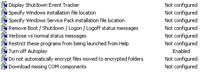
start, run and then type in gpedit.msc (NOT in home version). Browse
Computer Configuration -> Administrative Templates -> System Hit
start, run and then type in gpedit.msc (NOT in home version). Browse
Computer Configuration -> Administrative Templates -> System
Autoplay begins reading from a drive as soon as you insert media in the
drive. As a result, the setup file of programs and the music on audio media
start immediately. To stop this right click on properties for Turn off
autoplay and select enable then click ok. |
 MSconfig
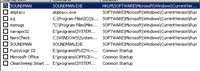
is a great place to free up a considerable amount of RAM. You can remove
alot of things from your startup including services. You'll want to first
uncheck all un needed programs on your startup. MSconfig
is a great place to free up a considerable amount of RAM. You can remove
alot of things from your startup including services. You'll want to first
uncheck all un needed programs on your startup. |
The best place to make changes to services can be found with just a few
clicks.
Control Panel --> Administrative Tools --> services
From there you will want to look over all the different services that are
running. When you first install Windows XP you will have 89 available services
and 36 of these are set to automatically start as the DEFAULT! There's really
only 5 that are needed to run. You should never set these to disabled. It can
cause quite a few problems if a program requires them to run. Setting these to
manual will allow them to run if needed but won't automatically start with
windows. This will free up quite a bit of resources by only running the services
that are truly needed.
The only place that I've found that really explains these services well can
be found HERE I'm
sure you'll be as surprised as I was to see how much garbage is on/in Win XP by
default. When properly tweaked you can really get alot more performance out of
this OS.
Unloading DLLS
Anytime a
process is ended this will force windows to try and unload any DLL files
associated with the now closed application. This can and probably will have a
negative affect on performance if yoopenopen applications not too long after
closing them. If you have buttloads of RAM, don't do this one! It Free's up used
RAM that most of us really do want.
To unload DLLs
when you are done with them navigate to
HKEY_LOCAL_MACHINE\SOFTWARE\Microsoft\Windows\CurrentVersion\explorer\AlwaysUnloadDLL
This time you'll have to create an entry called AlwaysUnloadDLL and set
the value to 1.
[HKEY_LOCAL_MACHINE\SOFTWARE\Microsoft\Windows\CurrentVersion\explorer\AlwaysUnloadDLL]
"(Default)"="1"


